Obsidian for school and Uni
In this blogpost I will cover my full 4-Year daily obsidian workflow, explain the rationale behind the plugins I chose and why links didn't work for me.
100% Human-written

Introduction
Most developers should know the benefits of writing docs in .md. Markdown not only gives you full ownership of all of your files, but also enables integration of arbitrary tools. Especially in the AI age, this is an essential strength.
Integrating AI into your notes becomes as easy as just spawning an agent in your vault root and formulating some behaviour rules.
You aren’t dependent on any toolset given to you by a firm with the same audience as scam callers.
Choosing Obsidian means configurability, stability and (generally) a feeling of superiority.
But like every highly configurable tool, it needs some setup to be nice to use. I’ve seen many bad tutorials and tips, and want to work my own experience into a small guide. I built my vault to meet specifically my needs as a MINT student.
The vault
I’ve used the software for 4 years now. I’ve installed (and uninstalled) hundreds of community plugins and was in configuration hell, a minimalism trip and everything in between. I think I found a nice middle ground that works for me.
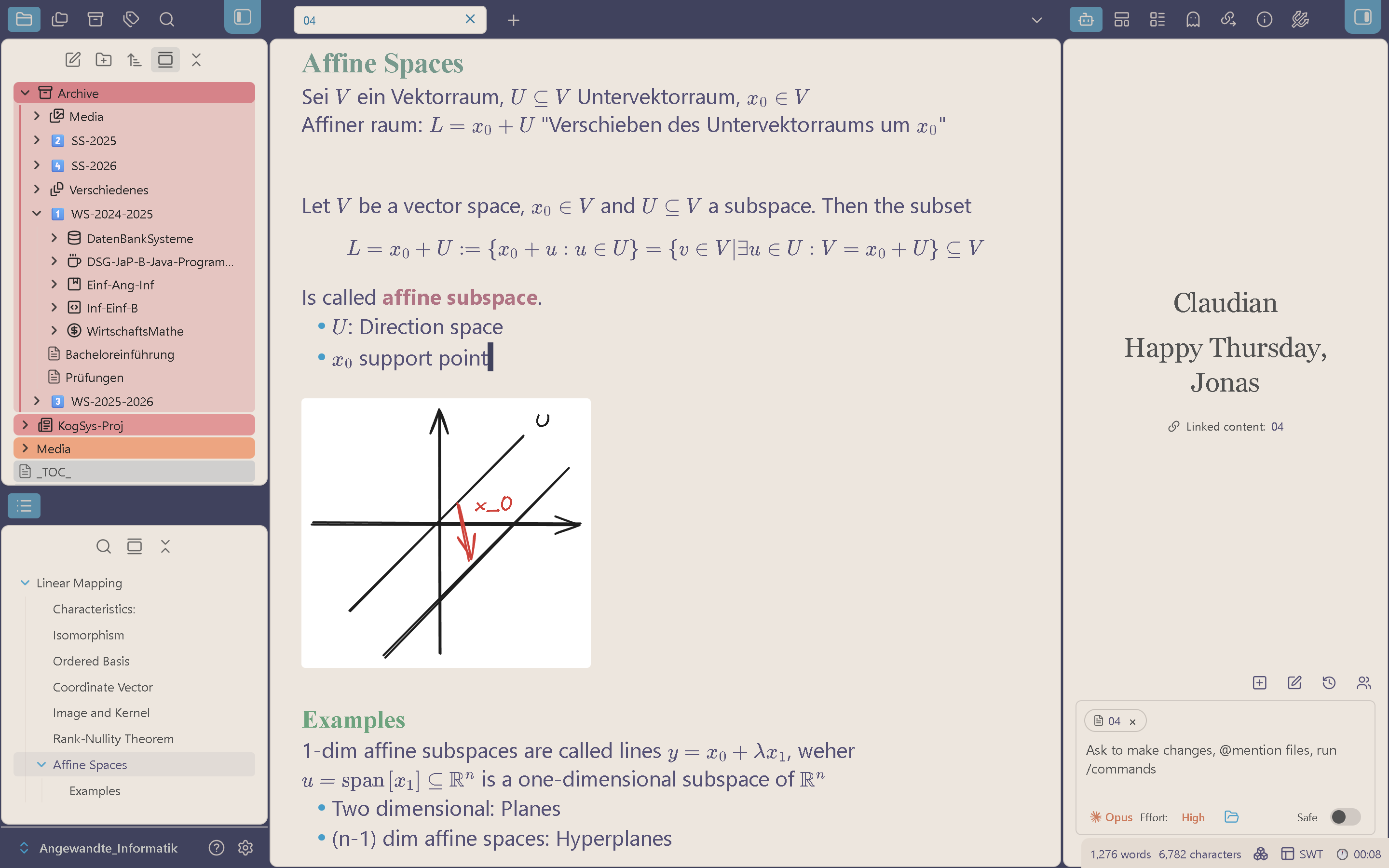
Believe it or not, but I found the builtin link system (and thus the infamous obsidian graph network) as completely useless. That goes against the whole “second brain” crowd and I’m proud of it. When I study, am completely organized into semesters, courses and lectures. Seeing the hierarchy? Specific lecture notes correspond to specific lecture slides and embedded assets correspond to specific files.

Connections in my vault aren’t made via links, they are made with locations and the hierarchy that this creates, so why would I need any more links?
.
├── Archive/
│   ├── SS25/
│   │   └── Course1
│   └── ...
├── Course2/
│   ├── assets/
│   │   └── Lecture01/
│   │       └── image.png
│   ├── Assignments/
│   ├── Exam-prep/
│   ├── ...
│   ├── LecturePDF/
│   │   ├── Lecture01.pdf
│   │   └── Lecture02.pdf
│   ├── Lecture01.md
│   └── Lecture02.md
└── Course3/
    └── ...
What follows is a list of all the plugins I use, sorted into specific usecases and a short explaination.
Note-Taking
Editor feel
Loads a startup vimrc, so my Vim mappings are identical in Obsidian and in my editor.
Flashes the yanked region, must-have
VS Code key bindings (line move, duplicate, multi-cursor) inside the editor
Leader-key style command sequences, so vault actions are reachable from the keyboard without hotkeys.
Buffer lines below the cursor, so you don't have to work at the edge of your screen.
All to meet my needs of navigating quickly. I grew dependent the Vim keybindings.
My .obsidian.vimrc:
" Have j and k navigate visual lines
nnoremap j gj
nnoremap k gk
nnoremap gj j
nnoremap gk k

" Quickly remove search highlights with ESC
nmap <ESC> :nohl<CR>

"" Smarter o and O (inserting prefix for markdown lists).
nmap o A<CR>
nmap O kA<CR>

" Yank to system clipboard
set clipboard=unnamed
Math and code
Auto-fractions, matrix and align shortcuts, custom shorthands, use immediately
Autocompletion for LaTeX commands (I disabled it for everything else)
Inline calculations in plain text: arithmetic, percentages, unit conversion and date math right where I am writing.
Executes code blocks directly in Document. I use it mainly for syntax verification
Convenience plugin. Open arbitrary code files in Vault in a handy editor, not for fullon coding, good for a quick look
Sketches and diagrams
One of the most important elements in My workflow. Quickly draw and Embed handdrawn sketches
Toolbar with common Mermaid elements, making it a smoother experience the few times I use Mermaind.
Plots mathematical functions inline.
I’m a bit unhappy with the drawing & config speed though, Diagrams are clunky. This is where Mermaid comes into play. Obsidian has a builtin mermaid renderer, just label a block code with mermaid. I still struggle with the syntax though, thus I use the toolbar.
A small regret I have is Obsidian Functionplot. Have used it a few times and am now stuck with the plugin for backwards compatibility. Don’t be like me, actually think about what you’ll use.
Sources
Annotates lecture slides and papers inside Obsidian and links notes back to the exact highlighted passage in the PDF. I usually split-screen the PDF and note.
Built in media player for lecture recordings. Supports timestamped embeds and Screenshots.
Pasting a paper, docs page or lecture URL fetches a readable title instead of a naked link.
Select text, paste a URL, get a Markdown link. Just Intuitive behaviour, should be built in.
PDF++ is especially good, because it supports dynamic embeds. It just specifies a rectangle in the source file and renders on-demand, no additional images sitting in assets. Media Extended sadly just takes screenshots. I’m not even sure if dynamic loading would be resourceful though, no idea if the .mp4 file structure would support this.
Consistency
Normalises YAML, headings, spacing and math blocks on save, making the vault a bit more normalized.
Converts quotes, dashes and ellipses to their typographic forms so exported PDFs look properly typeset.
Bulk-shifts heading levels up or down
Linter is great for solving a very specific problem of mine, because I often use this note structure:
**Technical term**
- Aspect 1
- Aspect 2
**Broken term (gets wrapped upwards)**
- Aspect 1
Sadly, lines directly after lists in markdown gets merged into the previous line. I forced an empty line after every bullet list with this custom regex:
^((?:[ \t]*[-*+] .*\n)+)(?=[ \t]*(?![-*+] )\S) - gm - $1\n
I won’t explain it though, go figure it out yourself at Regex101 — the example above is already loaded as the test string.
Visuals
Styling
Exposes theme, snippet and plugin CSS variables as real settings, which is how I tune the look of callouts and tables without editing CSS by hand.
Lightweight inline callouts inside lists. See Better Export PDF, only exporter that supports them.
Icons on course folders and key notes so I can navigate the vault by shape instead of reading every folder name.
I’m currently using the Soft Paper Theme, mainly for its customisability with style settings. I also like the pastel background.
How the screen looks
Hides specific visual elements. Important for a distraction-free Workspace.
Reorders and hides status bar items, keeping only the counters I actually watch (edit time, word count) visible.
Collapses sidebars automatically when I shrink the window. This means that notes are always readable, even if I have obsidian only on one side of the screen
I found the standard view to be much to cluttered and distracting, thus I hid most of it. I hid:
- The ribbon
- the tab title bar
- Many Statusbar items, including Vim mode
- backlink, canvas, footnotes, page-preview, daily-notes, slash-command, bookmarks, markdown-importer, zk-prefixer, random-note, audio-recorder, publish, bases
I also have keyboard shortcuts to directly hide sidebars and tabbar. This means in fullscreen I only see my note, perfect focus.
Navigation & Search
Fast switching between saved layouts: One for each Course and usecase
Shows the outlines of several notes side by side, which is how I get an overview of a whole course before an exam.
Global search across all settings tabs
Multiple Notes outline is a gem I found relatively recently. I configured it to display the outline of every note in a course folder, superb for navigation and getting a overview on how far your notes are done.
Getting things out of the vault
Turns a course note into a slide deck without leaving the vault: Used mainly for tutoring
Exports notes as PDFs, produce printable summary sheets for friends. Replaces Obsidian export, because it supports List callouts
Service callers
Embeds Claude Code and other coding agents with the vault as working directory, so an agent can read my notes and PDFs, run shell commands and edit files for me.
Pulls lecture, lab and deadline events into the vault so planning notes sit next to the actual schedule.
Custom system prompt:
You are mainly used as a university tutor for students with solid CS experience (especially ML). Act accordingly, highlight connections and explain with related concepts. If you create a file, mark it with the “LLM: Claude” property. If you modify a file, insert ”— (Claude)” as header and footer to your modification.
Under the hood
Enables and disables sets of plugins with one command and delays startup of heavy ones, which keeps this long list from slowing down launch.
Store embeds near the actual note, not in one big photo wasteland
Keeps the frontmatter timestamps current automatically, Which is what my Dataview "recently touched" queries depend on.
Provides NLP primitives (tokenisation, similarity, keyword extraction) that other plugins and my own queries can build on for text analysis over the vault.
Custom Attachment Location is very important to me, since my hierarchical filestructure needs me to have embeds near the actual note. This is where I store my embeds:
.
├── assets/
│   ├── Note1/
│   │   └── img1.png
│   └── Note2/
│       └── drawing.excalidraw
├── Note1.md (embeds img1.png)
└── Note2.md (embeds drawing.excalidraw)
Sync and backup
I actually don’t have a dedicated backup system for obsidian. I put all of my documents in a partition BEFORE my OS. This is backed up to Google drive using this.
Disclaimer
Keep in mind that nothing good comes from optimising your note-taking system to the brim, it’s just wasted time. If another system works for you, honestly keep it. But if you’re already deep in the obsidian rabbithole, I suggest giving my method a try :). Thanks for reading my second blogpost!